
Internal Only
Use the built-in MacBook display and disconnect external screens.
Switch between MacBook only, mirror, extend, and external-only in seconds—from one keyboard shortcut or your menu bar.
External display active
Everything but the screen
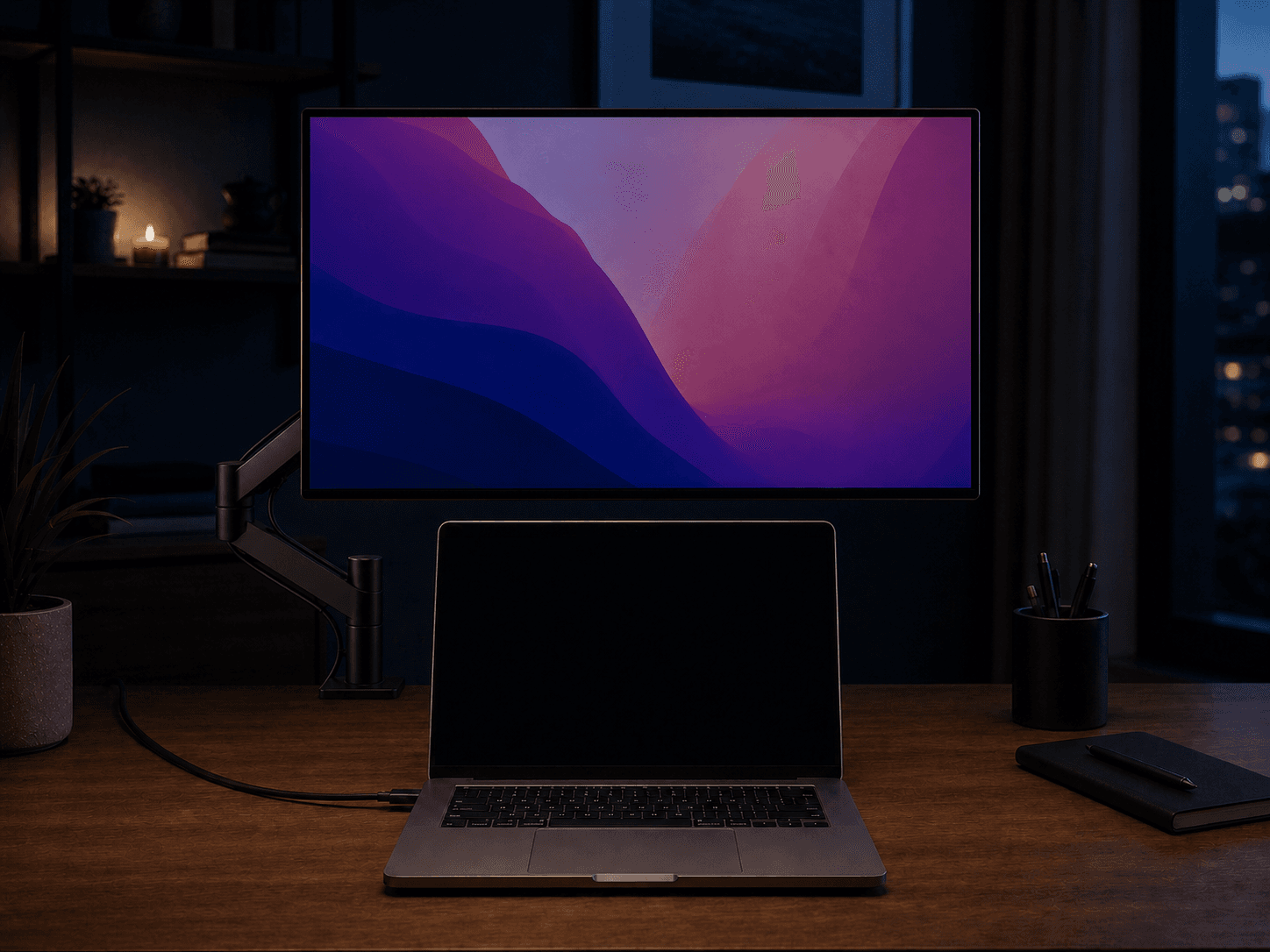
Work on an external monitor without closing the lid or giving up your MacBook's keyboard, trackpad, Touch ID, camera, speakers, and microphone.
Four familiar modes
Press your customizable shortcut, choose a mode, and return to work. The same controls are always available in the menu bar.
Use the built-in MacBook display and disconnect external screens.
Show the same content on your MacBook and connected displays.
Spread your desktop across every connected display for more space.
Turn off the MacBook screen while keeping the lid open and useful.
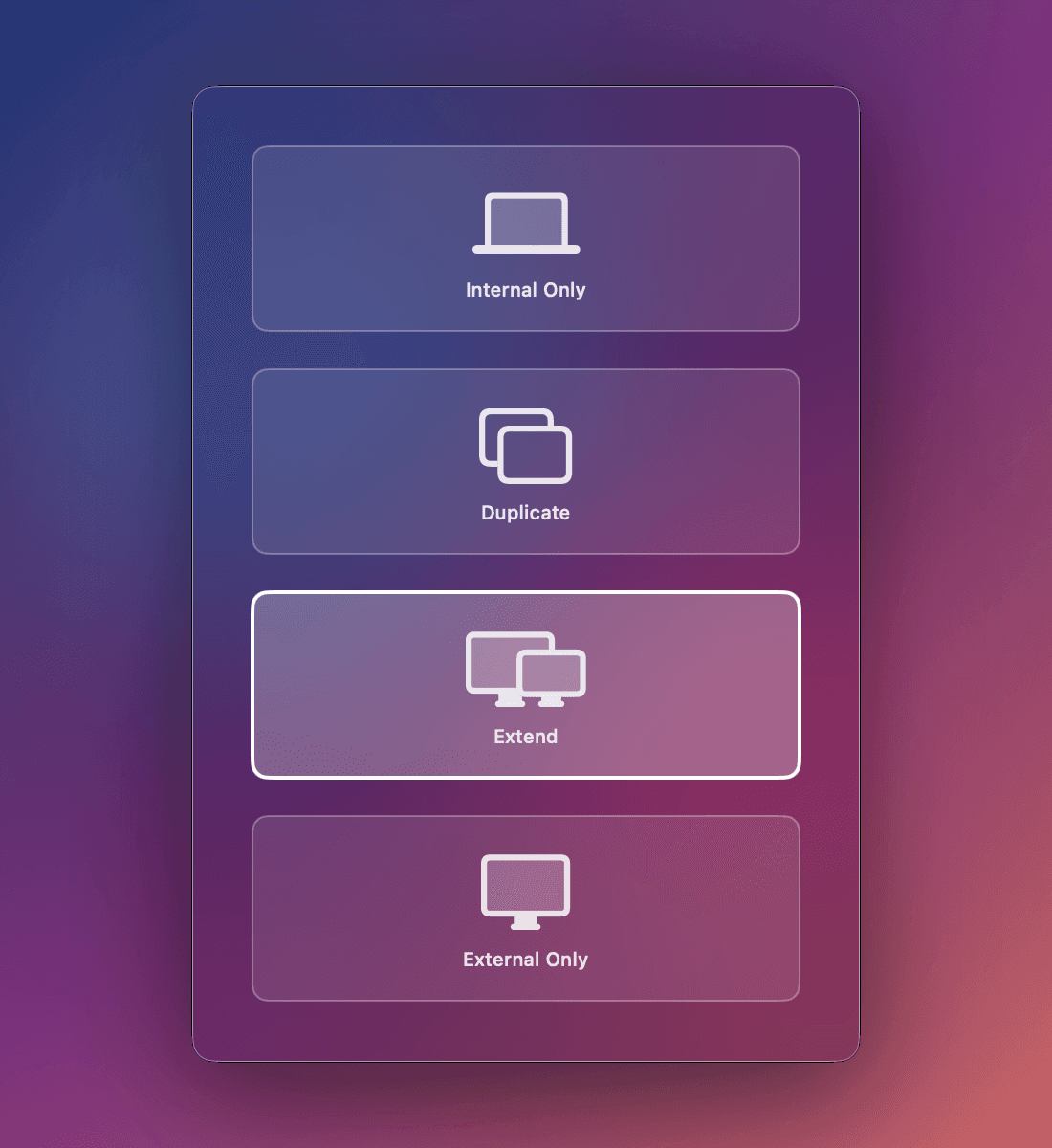
Shortcut HUD
Press your shortcut and choose a mode without leaving your work.
For power users
Install the optional command-line tool and switch modes from shell scripts, launchers, Stream Deck actions, or any automation that can run a command.
$ display-switch status
extend

$ display-switch external-only
Display mode set to External Only.

$ display-switch extend
Display mode set to Extend.
Simple pricing
No subscription, feature tiers, or recurring fees.
Everything in Display Switch, on all your Macs.
Try every feature free for 7 days.
Secure payment and license delivery via Polar.
Questions, answered
Yes. It disconnects the selected display from the active macOS desktop instead of covering it with a black window. macOS stops placing windows and the pointer on that display until you enable it again.
If no usable external display remains while the built-in display is disabled, Display Switch automatically restores the built-in display. Quitting the app also restores all displays.
Yes. External Only mode disables the built-in screen while leaving the lid open, so you can continue using the MacBook keyboard, trackpad, Touch ID, camera, speakers, and microphone.
Display Switch requires macOS 14 Sonoma or later. Because docks and display drivers vary, the free trial is the best way to verify a particular multi-monitor or DisplayLink setup before purchasing.
No. Display Switch has no in-app analytics and does not require an account. It uses network access only to validate a license and check for application updates.
Display switching pauses until you enter a license key. A $9.99 lifetime license unlocks every feature on all your Macs and includes future updates.
Yes. Install the optional display-switch command-line tool from Settings and call it from Terminal, scripts, launchers, or other automation tools.
Try every mode free for seven days. No account, subscription, or payment details required.
